
You’re usually not upgrading SonicWall firmware at a convenient time.
It’s after hours. Remote staff still need VPN access. A site-to-site tunnel supports accounting, VoIP, or cameras. Someone says the upgrade “should only take a few minutes,” and that’s exactly when teams get burned. The hard part isn’t clicking the upload button. The hard part is knowing what version to trust, what to back up, what HA will do behind the scenes, and how to recover fast if the firewall comes back in a bad state.
That’s the gap in most documentation around upgrading SonicWall firmware. The basic workflow is simple. Production environments aren’t. Small and midsize businesses often have firewalls with inherited settings, old imported configs, remote users on SSL VPN, and no appetite for downtime. If the device is several versions behind, or if it’s in a high availability pair, the risk changes fast.
A good upgrade feels boring. That’s the goal. You want a controlled maintenance event, not a midnight recovery call.
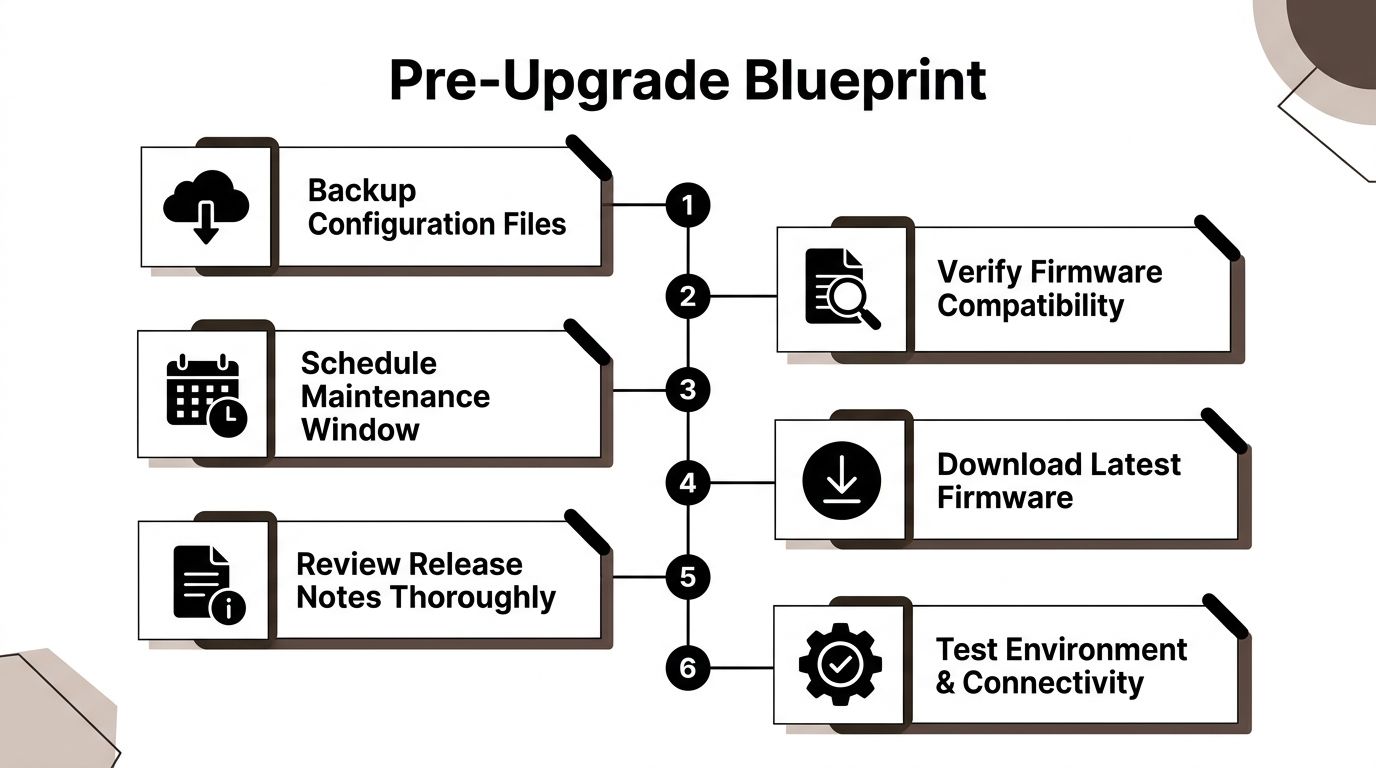
Your Pre-Upgrade Blueprint for a Smooth Process
In our experience, failed firewall upgrades often start hours or days before the maintenance window. The warning signs are familiar. Someone picks a firmware file by habit instead of by model and release train. Nobody checks what changed in SSL VPN or HA behavior. The only backup is sitting on the admin laptop that may lose access if the firewall comes back badly.
That is why prep work carries more weight than the upload itself, especially in SMB environments where one appliance may be handling internet edge, site-to-site VPNs, remote access, content filtering, and failover. SonicWall has also been pushing out security fixes on an active cadence, and that matters if you are balancing patch urgency against business uptime. SonicWall’s own security advisories are the right place to confirm whether a release is routine maintenance or a response to an actively important issue (SonicWall PSIRT and security advisories).
Start with the version question
Before downloading firmware, confirm three facts:
- Exact model: Gen7 and Gen8 firmware are different code lines.
- Current firmware train: The jump path matters, especially if the appliance is not close to current.
- Management method: Local GUI, NSM, and HA each change the order of operations.
For Gen7 appliances, the verified guidance points admins toward SonicOS 7.3.2-7010 or later. The same source states that SonicWall ended support for 7.1.X on September 30, 2025 and does not recommend 7.2 because issues fixed in 7.3.0 remained unresolved there (Gen7 firmware recommendation and process guidance).
That is the published guidance. Field reality is messier.
A current firewall with a clean config is usually straightforward. A box that has lived through hardware replacement, imported settings, years of object sprawl, and one-off VPN changes needs a different level of caution. I treat those as change-control events, not routine patching.
Practical rule: The more inherited configuration a SonicWall has, the less confidence you should place in a "quick upgrade."
Read the release notes like an operator
Release notes are not housekeeping. They are where you catch the changes that create after-hours surprises.
Focus on anything that affects:
- SSL VPN and remote access
- Authentication behavior
- Password requirements
- SSH or management access
- HA behavior
- Centralized management compatibility
The question is not whether the firmware installs. The question is whether users can still work when it comes back up.
That distinction matters in small and midsize environments. A firewall can boot normally and still break the accounting tunnel, leave remote staff unable to authenticate, or change management behavior enough to slow recovery. Official steps usually cover the upload sequence. They spend far less time on what changed operationally, which is where experienced admins save themselves trouble.
Handle multi-version jumps carefully
Many SMB upgrades stop being simple at this point.
If the appliance is several versions behind, do not assume a direct jump is the safest choice just because the GUI allows it. SonicWall’s knowledge base explains the standard firmware upgrade process, but it does not spell out much practical guidance for environments that are far behind, heavily customized, or carrying old imported configuration baggage (SonicWall knowledge base article on firmware upgrades).
Treat a multi-version jump as a compatibility review. That means checking more than the target file:
- Export the current configuration
- Document business-critical dependencies
- Verify the target firmware train for that exact model
- Read release notes for migration or compatibility warnings
- Reserve extra validation time after reboot
If a SonicWall is far behind and carries a long configuration history, old settings may import cleanly and still behave differently after the upgrade. That is one of the unwritten rules that catches teams off guard.
Backups are your safety net, not a checkbox
Take the config backup. Store it somewhere reachable if the firewall is offline. Label it with the device name, date, and running firmware so nobody is guessing during recovery. If the company does not already have a disciplined process for storing and retrieving change backups, fix that before the upgrade. The same thinking applies to backup and disaster recovery planning.
Then capture the live state of the firewall before you touch it:
- Screenshots of interface status
- VPN tunnel status
- Important address objects and NAT policies
- Licensing and registration visibility
- HA status if applicable
- Admin access method you will use after reboot
A config export helps you restore. It does not tell you whether the firewall came back healthy. Those screenshots and status checks give you a baseline.
Schedule for business impact, not admin convenience
Pick the change window based on who depends on the firewall, not on when IT usually does maintenance.
If remote users work late, a 9 p.m. reboot may still hit active SSL VPN sessions. If site-to-site tunnels carry overnight finance traffic, avoid that period. If the firewall sits in front of cloud apps, the reboot still interrupts the business even when no servers are on-prem.
The best pre-upgrade plans answer two blunt questions before anyone uploads firmware. If this goes wrong, who feels it first? And what exact steps get service back fast?
Executing the Standard Firmware Upgrade
A single SonicWall upgrade usually fails for ordinary reasons, not exotic ones. An admin grabs the wrong image, assumes the box will tolerate a big version jump, or clicks reboot before confirming how they will get back in if the VPN and WAN links take longer than expected to reestablish.
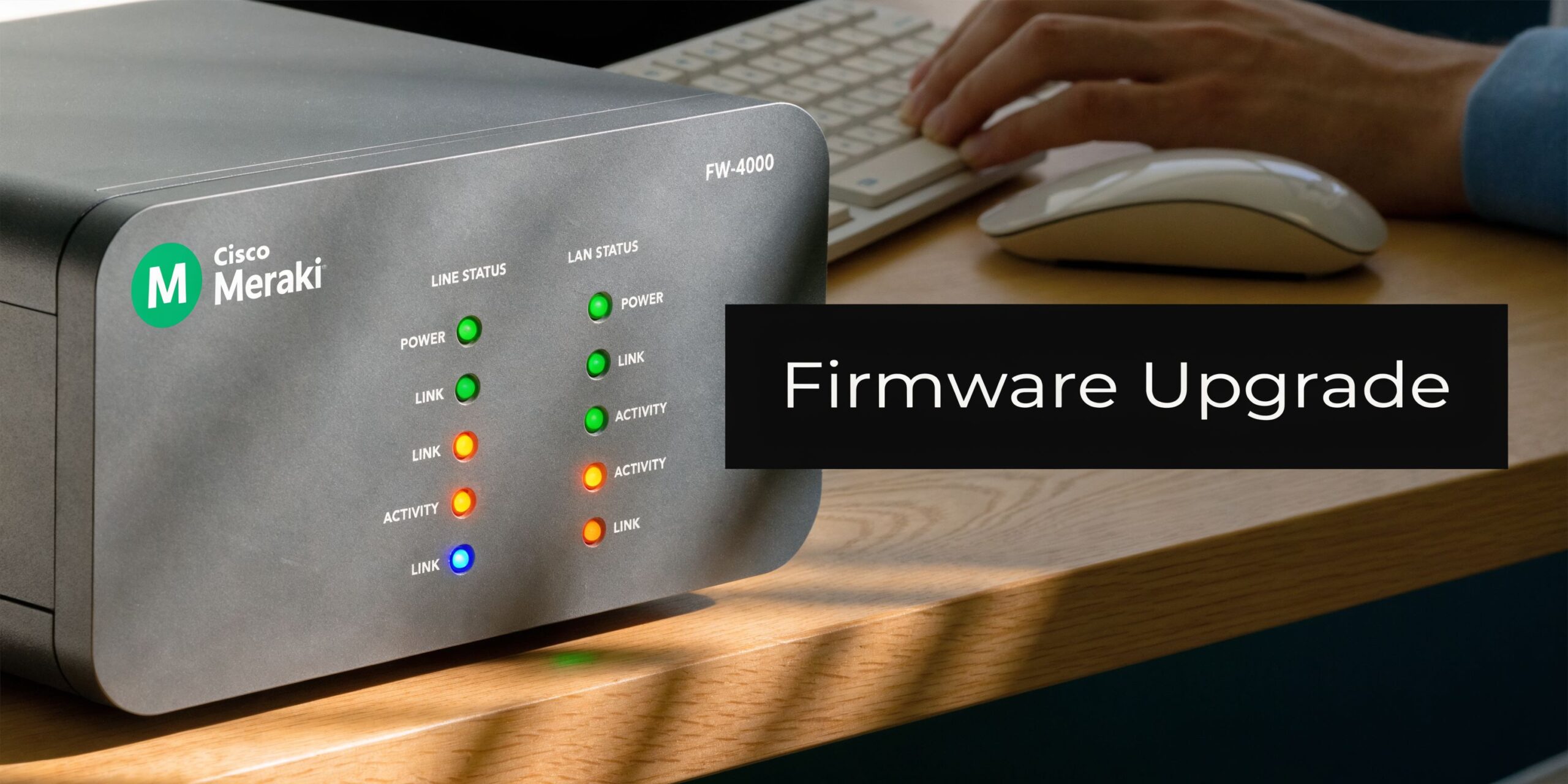
On a healthy standalone appliance, the GUI workflow is simple. The part that gets glossed over is judgment. Official steps tell you where to click. They do not help much when you are upgrading an SMB firewall with years of inherited policy objects, old VPN definitions, and a firmware gap large enough to raise compatibility questions.
Pick the right firmware and respect the upgrade path
Download the firmware from MySonicWall under the exact registered appliance. Match the model carefully, and confirm you are pulling the correct .sig image for that hardware generation.
I do not treat "latest available" as "best choice for tonight's maintenance window." If the firewall is several releases behind, check the supported upgrade path first and look for any release notes that mention intermediate hops, VPN behavior changes, or configuration conversion issues. Multi-version jumps are where routine upgrades stop being routine.
A practical standard workflow looks like this:
| Step | What to do | Why it matters |
|---|---|---|
| Download | Get the exact .sig file for the registered model | Prevents model mismatch and failed boots |
| Review path | Confirm whether the current version can jump directly | Avoids conversion and boot problems on older code |
| Upload | Use the firmware page in the GUI | Keeps the process visible and controlled |
| Choose boot action | Usually upgrade with current settings | Keeps the existing production config in place |
| Reboot | Expect a short outage and watch console or status closely | Lets you react quickly if startup drags out |
| Verify | Test traffic and management access after login | Confirms the firewall is back in service |
Use the GUI carefully
Upload the image from the firmware page in the management interface, acknowledge the backup prompt, and select Upgrade with Current Settings unless you are intentionally testing a different boot image or recovering from config corruption.
That choice matters more than many teams realize. In a normal production change, the goal is to replace the operating system while keeping a known working configuration. Rebuilding from defaults in the same window is how a 10-minute outage turns into an after-hours incident.
Upload completion only means the file is staged.
The significant change starts when the appliance reboots, reinitializes interfaces, brings security services back up, and renegotiates tunnels. I plan for the firewall to come back slower than the happy-path estimate, especially on boxes with a lot of active rules, content filtering services, or several WAN and VPN dependencies.
Checks that prevent avoidable downtime
Before you click the final reboot action, confirm these items one more time:
- The firmware filename matches the exact appliance model
- The running firmware version supports the jump you are attempting
- You have local or alternate management access if the usual path fails
- The admin account and MFA method you need after reboot are available
- Users who rely on VPN or remote access know the outage window
- The exported backup is reachable from somewhere other than the firewall itself
For SMB environments, I also recommend checking current CPU and memory load before the reboot. If the appliance is already under strain, boot time and service recovery can be less predictable. That does not always mean stop the change, but it should change your expectations and your monitoring.
If your team wants a visual walk-through before doing this in production, use this as a reference point during planning:
What works in practice
Standard upgrades go well when the appliance is healthy, the target firmware has been checked against the current version, and someone is actively watching the reboot instead of assuming the browser refresh will tell the whole story.
What causes trouble is more specific:
- Blindly jumping across multiple releases without checking the supported path
- Assuming imported or very old configs will behave the same on newer code
- Running the change during active VPN usage because the reboot "should be quick"
- Letting one admin hold the only recovery access, MFA device, or MySonicWall login
- Calling the job done once the login page returns, without testing real traffic
If you manage several firewalls and want a repeatable process for upgrades, validation, and rollback planning, it helps to formalize that work inside a broader managed firewall service approach.
For a single appliance, the mechanics are simple. The risk sits in the details people skip.
Navigating High Availability Cluster Upgrades
Friday night, the primary reboots, the passive unit takes over, and everyone relaxes for about 40 seconds. Then the second unit follows it down, the cluster never forms cleanly, and what should have been a controlled firmware change turns into an outage with remote users locked out and site-to-site tunnels flapping. That pattern is common in SMB environments because HA creates confidence that the upgrade process does not deserve.
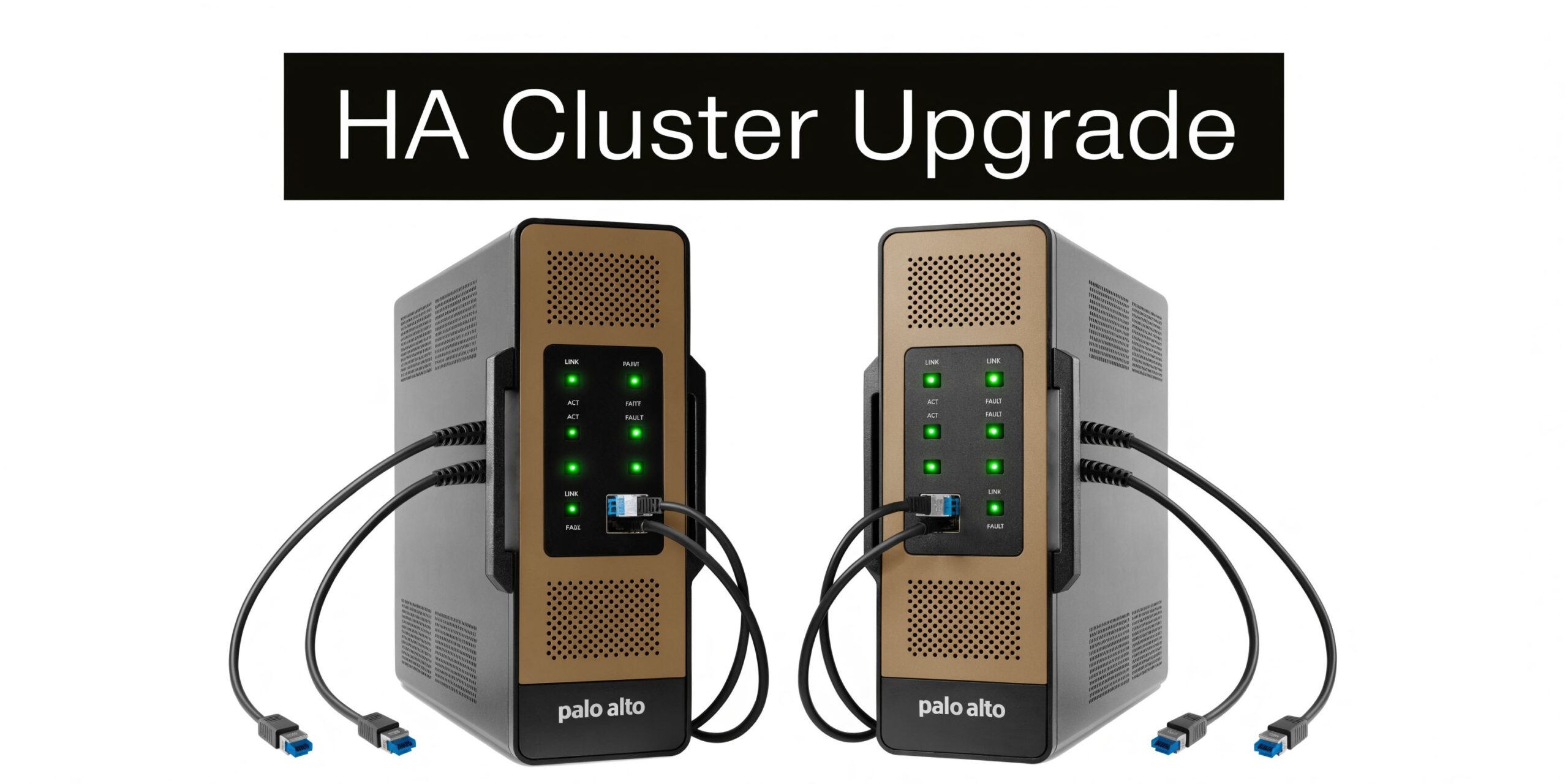
HA pairs need a different mindset from single-appliance upgrades. The risk is not just the firmware itself. The risk is shared state, sync behavior, failover timing, and the fact that a bad assumption on one node usually affects both. Official steps cover the button clicks. They spend less time on practical problem cases, such as appliances that are several versions behind, imported configs with old baggage, or pairs that look healthy until you force a failover during maintenance.
The first unwritten rule is simple. Do not treat the secondary as a safe lab unit. In many SonicWall HA deployments, firmware handling is tied closely enough between nodes that uploading to the active unit can sync the image and commit both devices to the same upgrade path. Community admins have documented that behavior in production HA pairs, including cases where there was no real test window on the passive firewall first (HA upgrade discussion and operational detail).
Why HA upgrades fail
The failures I see usually start before the firmware is uploaded.
An HA pair that already shows stale sync status, delayed config replication, interface mismatches, or unexplained role changes is not ready for code work. Upgrading from that baseline often converts a minor HA issue into a full recovery event. The same applies to multi-version jumps. A release that is fine on a standalone unit can expose edge cases in HA, especially around stateful sync, VPN re-establishment, and post-reboot role election.
Common causes include:
- Assuming the passive node can be upgraded first as a harmless test
- Ignoring pre-existing HA health warnings because failover still appears to work
- Using a firmware build that was only informally vetted on standalone firewalls
- Skipping the exact reboot and role sequence for that SonicOS branch
- Starting without console access, local credentials, and a written recovery path
If the pair is unstable, stop and fix that first. Firmware is not a repair tool for cluster health.
The safer HA sequence
For newer SonicOS releases, SonicWall has published HA-specific upgrade handling in release documentation, including cases where stateful synchronization should be disabled before the upgrade path begins and restored only after both units are clean on the target code (SonicWall SonicOS release notes and support documentation). The exact workflow depends on platform and firmware family, so the release notes for your target build matter more than generic upgrade habits.
In practice, this is the sequence I trust:
Verify cluster health before the change
Check active and idle roles, last sync status, HA link health, interface monitoring, licensing state, and recent logs. Force a controlled failover before the window if there is any doubt about role stability.Export backups from both units
Save the current settings and keep a copy of the firmware already running. On older or heavily modified appliances, I also capture screenshots of HA, VPN, NAT, and critical interface pages. Config files are useful. Visual references are faster during recovery.Disable stateful synchronization if the target release requires it
Follow the release-note order exactly. HA upgrades are one of the few times where improvisation causes real trouble.Restart both units first if that sequence is called for
This clears out cluster weirdness that has been tolerated during normal uptime. It adds a little time to the change, but it reduces the odds of chasing ghost HA behavior after the firmware loads.Upgrade one unit at a time and wait for clean recovery
Watch the role election, not just the web UI. Confirm each firewall comes back on the intended version, rejoins the pair correctly, and does not sit in a half-synced state before you proceed.Re-enable synchronization and validate the pair as a pair
Two online appliances are not enough. Confirm config sync, expected active and standby roles, monitored interfaces, VPN recovery, and session behavior after a manual failover test.
One more practical rule. If the business depends on SSL VPN, branch connectivity, or cloud access first thing Monday morning, do not schedule an HA firmware jump late in the window with no buffer left for cluster re-formation. HA rollback decisions get messy fast, especially if both nodes have already committed to the new image.
Vet firmware more aggressively in clustered environments
Clustered firewalls need stricter version selection. A build with minor field complaints on a standalone appliance can become a poor choice in HA because failover logic, session sync, and tunnel recovery add more variables. That matters even more when you are dealing with multi-version jumps in SMB estates where the pair may have been left untouched for a long maintenance cycle.
Use a simple decision table before you commit:
| Situation | Better decision |
|---|---|
| Stable HA pair, routine maintenance | Use a known-good release and a maintenance window with time for failover testing |
| HA pair with sync oddities or recent role flips | Correct HA health first, then reschedule the upgrade |
| Pair is several versions behind | Confirm the supported upgrade path and plan for longer validation |
| Firewalls tied to centralized management or reporting | Check platform compatibility before touching production |
If the pair fails to come back cleanly, the recovery process needs to be written down before the window starts. That includes console access, who approves rollback, what services get tested first, and how the business operates if HA does not re-form on schedule. The same discipline sits behind a documented disaster recovery plan for service continuity.
Critical Post-Upgrade Verification and Testing
A SonicWall that boots on the new firmware isn’t automatically healthy.
Plenty of upgrade problems hide in the layer right above “device is online.” Users discover them the next morning when SSL VPN behaves differently, a site-to-site tunnel never re-establishes, or a rule that used to pass traffic now behaves oddly because some dependent service didn’t come back cleanly.
Start with the basics
First, confirm the obvious items before chasing edge cases.
- Admin access: Log back into the management interface and confirm the reported firmware version is the intended one.
- WAN connectivity: Check that the appliance has restored internet access.
- LAN reachability: Verify that internal users can still reach expected resources.
- Licensing visibility: Make sure the box isn’t showing any abnormal registration or service status warnings.
Then move to the business-critical paths.
Test what users depend on
Many teams are too generic in their testing approach. Don’t run one ping and declare success. Test the services the business pays you to protect.
A good verification pass includes:
- SSL VPN access: Have a real remote user test logon and resource access.
- Site-to-site VPN tunnels: Confirm tunnels are up and traffic passes both ways.
- NAT and access rules: Validate a few known published services and internal outbound flows.
- Authentication integrations: Check any directory-backed access that admins or users rely on.
- VoIP and cloud applications: Confirm the traffic types that generate the fastest complaints.
If remote access was carried forward from older hardware or older policy design, test it with more skepticism than the dashboard suggests.
Review logs with intent
Don’t just glance at green indicators. Look at logs after the reboot.
You’re looking for patterns such as repeated service restarts, VPN negotiation issues, authentication failures, or warnings that didn’t appear before the maintenance window. A single unusual event may be harmless. A cluster of similar errors usually deserves follow-up before the change is considered complete.
Use a short acceptance checklist:
| Area | Pass condition |
|---|---|
| Firmware version | Matches the target release |
| User connectivity | Internal and external access work normally |
| VPN services | SSL VPN and site-to-site paths are functional |
| Policy behavior | Expected rules and translations still work |
| Logs | No recurring post-upgrade faults |
| HA status if applicable | Roles, sync, and failover state are healthy |
Keep a short observation window
Even after everything passes, don’t close the task immediately.
Watch the firewall for a bit. Check that CPU, sessions, VPN behavior, and basic responsiveness stay normal. Some issues show up only after the unit handles real traffic again. That’s especially true when the firewall had a long configuration history before the upgrade.
The point of post-upgrade testing isn’t to prove the reboot succeeded. It’s to prove the business is still operating the way it was before, only on safer code.
Emergency Rollback and Troubleshooting Common Issues
Every firewall upgrade plan needs a recovery path before the first click.
That isn’t pessimism. It’s standard operating discipline. Even in well-run environments, firmware can expose old configuration problems, trigger version-specific bugs, or bring back services in a different state than expected. The teams that recover fastest are the ones that decided in advance what “abort and roll back” looks like.
A strong example is SonicOS 7.1.2, which was verified by SonicWall support to cause random catastrophic failures, particularly in HA pairs, making rollback planning essential and reinforcing the safer target of 7.1.3-7015 in that context (warning on SonicOS 7.1.2 and recovery implications).
Know when to roll back
Don’t wait for user outrage to make the decision for you.
Roll back when one of these is true:
- The firewall boots but critical services stay broken
- Management access is unstable or partially unavailable
- HA won’t reform cleanly after a careful verification pass
- VPN services fail in a way that blocks business operations
- The appliance shows behavior that wasn’t present before the upgrade and can’t be quickly corrected
That decision gets easier when you define a time limit in advance. If core functions aren’t healthy within your acceptable maintenance window, revert.
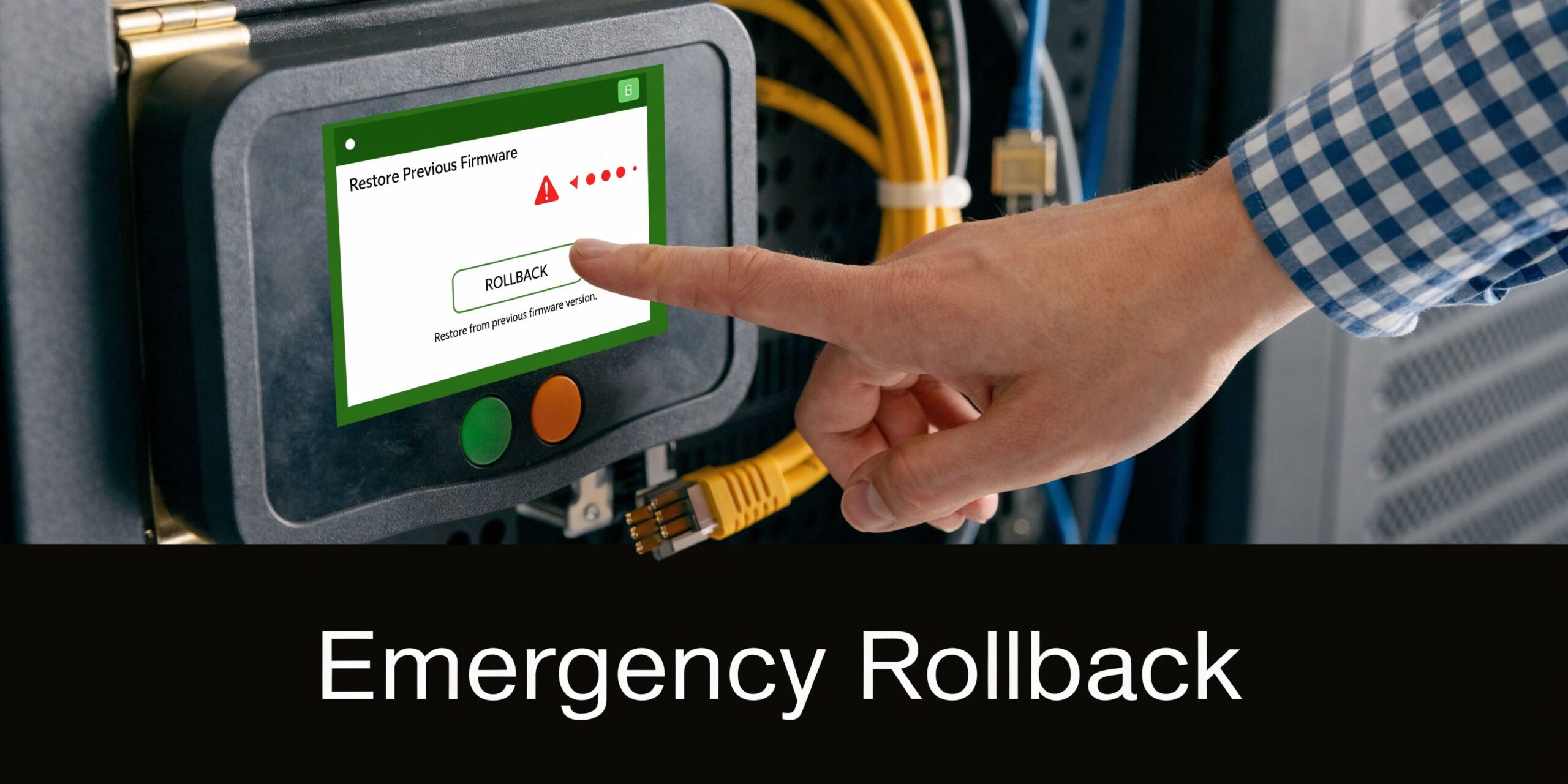
Use the previous firmware boot option first
One of SonicWall’s most useful protections is the ability to boot from the previous firmware image. In many cases, that’s the fastest route back to service because it avoids rebuilding the appliance under pressure.
The practical order is:
- Attempt boot to the prior firmware image
- Log in and confirm the device is stable
- Validate core services
- Only then decide whether config restore is necessary
This approach is often better than jumping straight to a config restore because it isolates whether the issue is firmware behavior or damaged configuration state.
Recovery is faster when you change one variable at a time. First revert the firmware. Then decide whether the configuration also needs to move.
When a backup restore is the better choice
Sometimes the previous firmware image isn’t enough.
If the appliance comes back but the configuration is corrupted, incomplete, or behaves differently than expected, restore the pre-upgrade backup you exported earlier. Good naming and off-box storage save time in this situation. You don’t want to hunt for “final-backup-really-final” while the office is waiting on remote access.
A practical troubleshooting map looks like this:
| Symptom | First move | Next move |
|---|---|---|
| GUI is reachable but services are broken | Boot prior firmware | Restore known-good config if needed |
| GUI login fails after upgrade | Try alternate admin access path | Roll back firmware and reassess |
| VPN won’t reconnect | Check service state and logs | Revert if business-critical access is blocked |
| HA pair won’t stabilize | Isolate cluster state and roles | Roll back and rebuild HA carefully |
| Performance feels wrong after reboot | Review logs and active services | Revert if sustained degradation continues |
Common field problems after upgrading SonicWall firmware
A few patterns show up often in production:
Admin lockout after reboot
This can happen when authentication behavior changes or the expected management path isn’t available. Always keep a direct, known-good admin path available before the window starts.SSL VPN works differently than before
Remote access can be the first place users notice trouble. Test with actual credentials and actual business resources, not just a successful login screen.Site-to-site tunnels stay down
Even if the policy set looks untouched, negotiation behavior may need a closer look after the firmware change.Imported legacy configuration acts unpredictably
Older migrated settings can survive for years, then react badly to a major firmware jump.
Build the response plan before you need it
The most effective rollback process is boring and rehearsed.
Write down who decides to revert, how long you’ll troubleshoot before reverting, where the backup lives, which services must be tested after rollback, and who communicates with staff. Teams that skip this planning often burn more time debating than fixing.
That’s also why emergency recovery planning should sit beside patching work, not behind it. The same kinds of threats that force urgent firmware maintenance also punish organizations that can’t recover quickly when a change fails.
Proactive Firmware Management and Final Thoughts
The healthiest SonicWall environments don’t treat firmware as a once-a-year chore.
They treat it like routine infrastructure hygiene. The difference matters. When upgrades are rare, every change feels risky, every release requires a crash refresher, and every maintenance window carries more uncertainty than it should. When firmware management is ongoing, the process becomes predictable.
Build a repeatable operating rhythm
A practical firmware program has a few simple habits:
- Track current versions across all appliances
- Review release notes before scheduling work
- Classify devices by business impact
- Separate standard single-node upgrades from HA procedures
- Keep current backups and rollback decisions documented
- Verify after each change with service-based testing, not just device-based checks
That rhythm reduces last-minute decision making. It also keeps the firewall from becoming a neglected dependency that only gets attention when a vulnerability or outage forces it.
Use automation carefully
SonicWall’s Firmware Auto Update feature in the 7.2 line can help automate critical patching, and that’s valuable for distributed environments where delayed updates increase exposure to malware and ransomware risk, as described in the verified reporting on the April 2025 release. Automation has a place. It just shouldn’t replace judgment for complex appliances, aging deployments, or HA pairs.
For straightforward edge devices with standardized policy sets, automation can reduce drift.
For appliances with heavy customization, inherited configuration, or tightly coupled VPN dependencies, human review is still the safer choice. The more important the firewall is to daily operations, the more intentional the approval process should be.
What consistently works
After enough upgrade cycles, the same patterns hold up:
- Planning beats speed
- Backups beat confidence
- Known-good firmware beats “latest for the sake of latest”
- HA requires its own process
- Post-upgrade testing has to reflect real business traffic
- Rollback planning is part of the upgrade, not a separate task
Those aren’t abstract best practices. They’re what keep a maintenance window from turning into an outage.
The bigger point
Upgrading SonicWall firmware is security work, but it’s also continuity work.
A firewall supports remote staff, cloud access, voice traffic, branch connectivity, compliance controls, and day-to-day trust in the network. If you manage upgrades casually, you’re gambling with more than the perimeter. You’re gambling with operations.
For small and midsize organizations, especially ones without a dedicated network team, that’s where outside structure helps. Outside structure helps in such situations. The value isn’t someone else clicking the buttons. It’s having a tested process, current documentation, predictable maintenance windows, and a recovery plan that doesn’t depend on one person answering a late-night call.
Cyberplex Technologies LLC helps organizations turn firewall maintenance from a reactive headache into a controlled, proactive process. If your team needs help with SonicWall lifecycle planning, HA upgrade strategy, rollback readiness, or day-to-day network security support, talk with Cyberplex Technologies LLC.